MCP for Non-Coders: Connect AI to Your Tools in 2026
MCP is an open standard that lets an AI model call the tools you already use, instead of you moving data between apps by hand. Anthropic published it as an open source project in November 2024, and by 2026 it is baked into chat clients, code editors, and the automation platforms no-code builders already run.
This guide is for intermediate no-code builders — people comfortable with triggers, actions, filters, and a Google Sheets lookup — who have never configured an MCP server or pasted an MCP URL into an AI client.
How This Guide Was Built
This guide was built from primary documentation rather than hands-on testing: the official MCP introduction, Anthropic’s launch announcement, Zapier’s MCP product page, and n8n’s MCP server documentation.
What was verified: the official definitions of MCP clients and servers, the November 2024 open-standard announcement and its list of pre-built reference servers, Zapier’s description of managed authentication for AI clients, and the documented n8n steps for enabling MCP access and copying a server URL.
A note on testing: This guide is based on official documentation, pricing pages, and community reports — we did not run the tool hands-on.
What is MCP, in plain English?
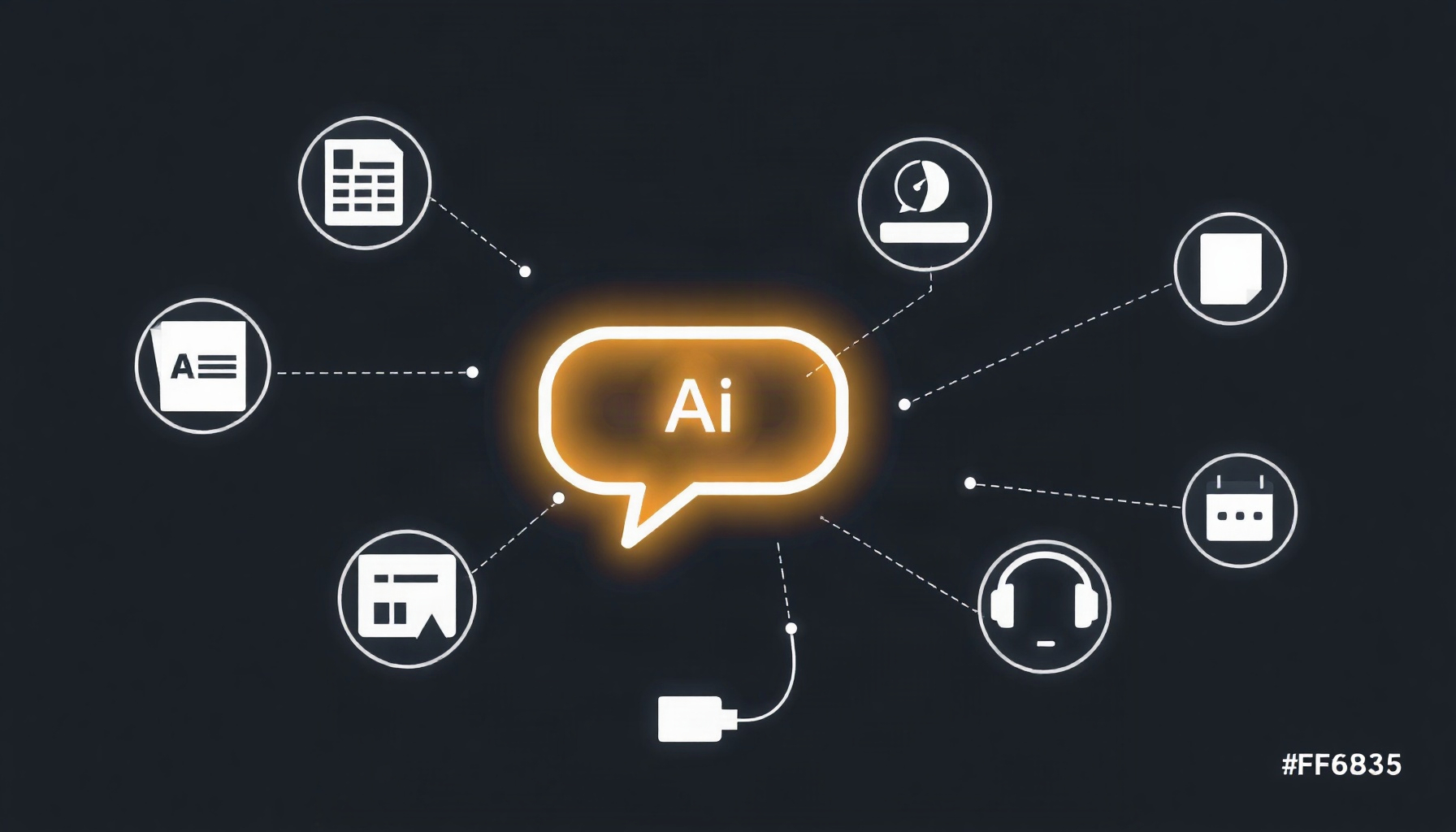
MCP, the Model Context Protocol, is an open standard giving an AI model one consistent way to reach the tools and data it needs, described on modelcontextprotocol.io as a USB-C port for AI tools. Anthropic announced it in November 2024 with pre-built servers for Google Drive, Slack, GitHub, and Postgres.
The USB-C analogy is the whole point. Before MCP, every AI-to-app connection was a custom cable: one integration for Slack, another for your database, a third for your file storage, each with its own authentication quirks. MCP replaces that pile of cables with one port and a shared protocol.
Two roles matter. An MCP client is the AI-facing app — a desktop chat client, Cursor, or VS Code’s Copilot chat. An MCP server is the adapter that exposes tools and data. When a client connects to a server, it asks “what tools do you have?” and the server answers with a list — read a sheet, send a Slack message, create a Notion page. The model then chooses which tool to call based on what you typed.
The official reference server repository lists open-source servers you can run yourself, which is the fastest way to see the pattern without building anything.
Why MCP matters if you build with no-code tools
MCP matters to no-code builders because it turns an existing workflow into a callable tool for an AI client, so you keep the automation you already maintain in n8n or Zapier and let a model trigger it in plain language. Zapier MCP describes this as letting AI clients take actions across apps with managed authentication.
Here is the practical shift. Your n8n workflow that checks a form response, writes a row, and pings Slack already works. Wrapping it as an MCP tool means a chat client can say “log this lead and tell the sales channel” and reach that same logic, without you rebuilding anything or writing a custom integration layer.
That matters for three reasons:
- You keep one source of truth. The automation stays in n8n or Zapier where you can debug it, not duplicated inside a chat client’s config.
- Auth stays where it already lives. Your Google Sheets and Notion credentials sit in the platform you connected them to, not scattered across new tools.
- The model handles routing, not logic. The AI picks which tool to call; your workflow still decides what actually happens.
If you want the build side of this, how to build an AI agent in n8n walks through the workflow layer that sits behind the endpoint.
MCP vs webhooks vs native integrations: which should you pick?
Choosing between MCP, webhooks, and native integrations comes down to who picks the action: MCP wins when an AI client chooses which tool to run, as Zapier MCP describes for its managed endpoint, while webhooks win for fixed one-way notifications and native connectors stay simplest when two apps already ship an official integration.
| Approach | Setup effort | Who controls auth | Best fit |
|---|---|---|---|
| Hosted MCP server (e.g. Zapier MCP) | Low — pick apps and actions in a web UI, copy one endpoint URL | The MCP provider stores and refreshes the app connections | Letting one AI client choose among many app actions |
| Self-hosted MCP server (e.g. an n8n instance) | Medium — enable MCP access, enable it per workflow, copy the server URL | You, inside your own instance, using credentials you already stored | Exposing private automation logic you already own |
| Custom MCP server built on the SDK | High — define tool schemas, transport, and deployment yourself | You, end to end | A narrow, tightly scoped set of domain actions |
| Outbound webhook | Low — paste a URL into the sending app | The sending app | One-way “this happened” triggers |
| Inbound webhook called by an AI or script | Medium — define the payload and check an auth header | You, inside the automation tool | Single fixed actions where an endpoint already exists |
| Native app-to-app integration | Lowest — click connect and approve an OAuth screen | The platform’s connector team | Two apps that already ship an official connector |
| Direct REST API call | High — read the docs, handle tokens, pagination, and retries | You, with your own token | Precise control when no connector or MCP server exists |
A short decision rule: if the AI needs to choose among several actions, use MCP. If the trigger is always the same event, a webhook is lighter. If both apps already ship a connector and no AI is involved, a native integration beats both.
Which of your tools speak MCP in 2026?
By 2026, MCP support lives mostly in AI clients and automation platforms rather than in the apps themselves: n8n exposes an instance-level MCP server, Zapier hosts a managed one, and the official open-source repo lists reference servers for common data sources, filesystems, and developer tools.
That distinction matters when you plan. Slack and Google Drive appear in Anthropic’s pre-built server list, so there is a documented path to reach them directly. For Google Sheets and Notion, the practical route for a no-code builder is usually to wrap an existing workflow as an MCP tool, because the platform already holds the authenticated connection.
If you prefer direct APIs, both are well documented — Notion’s developer platform and the Google Sheets API — and Slack’s API covers messaging and channel actions. None of those require MCP; they are what an MCP server or an n8n workflow calls underneath.
How to connect a chat client to an MCP endpoint
Connecting a chat client to an MCP endpoint is a four-part job: pick an endpoint, expose only the workflows or actions you want, copy the server URL and token, then paste both into the client’s MCP settings, which for n8n means a URL ending in /mcp-server/http per n8n’s documentation.
- Choose where the endpoint lives. Either a hosted service such as Zapier MCP, or your own instance running n8n.
- Turn MCP access on for the instance. In n8n this is an instance-level setting and it is not enabled by default — the docs are explicit about that.
- Enable MCP per workflow. Access is granted workflow by workflow. Any workflow you leave switched off simply does not appear to the client. This is your main scope control.
- Copy the server URL. In n8n, the generated URL ends in
/mcp-server/http. Do not confuse it with the editor URL or a webhook URL. - Collect the credential. Generate or copy the token the client will send with each request, and store it the way you would a password.
- Add the server in your AI client. In Cursor that is the MCP settings screen; in VS Code’s Copilot chat it is an MCP server entry in your configuration.
- Check the tool list. Most clients show a list of discovered tools once connected. If your workflow is missing, the usual cause is step 3 — MCP was never enabled on that workflow.
- Test read-only first. Ask the client something harmless, like listing rows from a sheet, before you let a model write, update, or delete anything.
For a hosted endpoint the order changes slightly: you pick the apps and the specific actions inside the provider’s dashboard, copy the endpoint URL it generates, and paste that into the client. The principle is identical — narrow scope first, credentials second.
Three pro tips before you connect anything
Three habits make MCP setups easier to live with: expose one narrow workflow per endpoint, treat the server URL and token as secrets, and test with read-only actions before granting a model write access, all of which follow from how n8n’s MCP access is enabled workflow by workflow.
- Name your workflows like tools. A client shows the workflow name to the model. “Log inbound lead to sheet + Slack” gives the model a better routing signal than “Workflow 12”.
- Keep a staging copy. Point the exposed endpoint at a test sheet or a sandbox Slack channel until the tool calls behave the way you expect.
- Write down what each endpoint exposes. Once you have three or four, a plain text list of “endpoint → workflows → who has the token” saves an hour when someone leaves the team.
Common mistakes and how to fix them
The most common MCP mistakes for no-code builders are assuming every workflow is exposed once MCP access is switched on per n8n’s MCP docs, pasting the wrong URL into the client, and handing a model write access on day one — the fixes are per-workflow enablement, the /mcp-server/http URL, and read-only test runs.
- Enabling instance MCP and expecting every workflow to appear. Fix: go back and enable MCP on each workflow individually.
- Pasting the editor URL or a webhook URL into the client. Fix: use the generated server URL, which ends in
/mcp-server/http. - Giving the AI client full read-write access immediately. Fix: run read-only for a week, then widen scope deliberately.
- Assuming MCP gives the AI memory. Fix: MCP exposes tools, not conversation history. Context still has to come from the prompt or a data lookup.
- Leaving orphaned tokens after a project ends. Fix: disable MCP on the workflow and revoke the token — the endpoint stops responding either way.
FAQ
Frequently asked MCP questions from no-code builders cluster around three things: whether the protocol replaces their automation platform, whether it requires code, and how to keep credentials safe, and the answers below follow the MCP introduction and the vendors’ own documentation.
Does MCP replace Zapier or n8n?
No. MCP is a connection layer between an AI client and tools, not an automation platform. Your workflows in n8n or Zapier keep running the logic, and MCP only gives a model a way to call them. Think of it as the door, not the room behind it.
Do I need to write code to use MCP?
No, not for a hosted or instance-level endpoint. You enable MCP in the platform’s settings, copy a URL, and paste it into a client — the workflow n8n documents. Code only becomes necessary if you build a custom server with the SDK.
How do I keep an MCP connection secure?
Treat the server URL and its token as secrets: rotate them when someone leaves, disable MCP on workflows you no longer want exposed, and keep actions read-only until you trust the setup. Because the client can call whatever tools you expose, the blast radius is set by your permissions, not by the model.
The Bottom Line
The bottom line for no-code builders is that MCP is a low-risk addition to automations you already own rather than a rebuild: you enable an endpoint, paste a URL into a client, and let a model call the workflows you choose, as described in the MCP introduction.
Nothing about your stack has to change for this to be useful. The workflows keep their credentials, the AI client gets a menu of tools, and you decide how wide that menu is. The mistake to avoid is treating MCP as a reason to rebuild — it is a wrapper around what already runs.
Cost is the one thing to check per vendor rather than in a guide: hosted MCP endpoints and self-hosted instances are priced differently, so read the provider’s current page before you commit a client to a production workflow.
Where to go next
- Zapier Agents review 2026 — where hosted agents fit next to a managed MCP endpoint.
- Zapier to n8n migration guide 2026 — moving your automations somewhere you control the MCP server.
- Webflow MCP 2 and AI agents that build sites — a look at MCP applied to a visual builder rather than an automation.
📖 Related Reads
- Hermes Tutorials — Hermes Agent setup, configuration, and advanced workflows
- ToolBrain — tool reviews, LLM comparisons, and AI workflow guides
- NiteAgent — AI agent development, frameworks, and production patterns
Cross-links automatically generated from NoCode Insider.