Beginner's Guide to Make: Getting Started in 2026
Beginner’s Guide to Make: Getting Started in 2026
Make is the easiest no-code way to automate your Gmail and Google Sheets in 2026 — and you can start free. If you are tired of copy-pasting the same data between apps every morning, Make lets you build visual workflows that do the work for you. This guide breaks down the free plan, your first automated workflow, and how AI features fit in, step by step, for non-developers. By the end you will have connected two apps and run your first automation without writing a single line of code.
How This Guide Was Built
This guide is based on the official Make documentation and pricing page — we did not run the tool hands-on. All information, including pricing, features, and getting-started steps, comes directly from Make’s public resources. We verified the free-tier pricing, the credit system, the signup flow, and the first-scenario steps against the official docs; we did not test paid plans or enterprise features hands-on, so steps for those are based on official documentation. Last verified: August 2026.
What do you need before starting?
You need only three things to follow this guide: a Gmail or Google account, a spreadsheet you can edit, and about 30 minutes. No credit card is required because the Make Free plan costs $0 per month, and you do not need any coding experience — the entire workflow builder is visual drag-and-drop. If you already use tools like Google Sheets, Notion, or Slack, you already know the kind of apps Make connects: popular Make apps include Google Sheets, Gmail, OpenAI, Anthropic Claude, Airtable, and Notion, per Make’s getting-started documentation.
How do I use Make.com for beginners?
To use Make.com as a beginner, you create a free account, connect your existing apps like Gmail and Google Sheets, build your first automation (called a scenario) with a visual point-and-click interface, and run it. Each action in your workflow uses one credit from your monthly free allowance, and you can monitor usage in real time. The official step-by-step walkthrough lives in Make’s Help Center, and the four steps below follow the same path.
Step 1: Create your free Make account
The first step to using Make is signing up for the Free plan, which gives you immediate access to the platform without any payment details. Go to make.com, click “Sign up,” and use your email address to create an account. You can also sign up with a Google account, which saves time later because that same identity is used to connect your Gmail and Google Sheets.
Expected output: after confirming your email, you land in the Make dashboard, where you see a “Create a new scenario” button and a credit counter showing 1,000 available credits. That counter is your monthly budget — the Free plan includes up to 1,000 credits per month, per Make’s pricing page. Do not worry about spending them yet; you will only burn a handful while testing today.
Why sign up free first? Because the Free plan includes the full no-code visual workflow builder and access to 3,000+ apps, so you can learn the platform before deciding whether a paid plan is worth it, per Make’s pricing page.
Step 2: Connect your first apps
After logging into your new account, navigate to the “Connections” section of the dashboard. This is where you authorize Make to access your other services, one time per app. Search for the Gmail app and click “Create a connection,” then follow the on-screen prompts to log in to your Google account and grant permission. Repeat this process for Google Sheets.
Expected output: both Gmail and Google Sheets appear in your connections list with a “connected” status. The connection is reusable — you connect each app once, then use it in as many scenarios as you like. Popular Make apps include Google Sheets, Gmail, OpenAI, Anthropic Claude, Airtable, and Notion, per Make’s getting-started documentation. If you use Gmail with a custom business domain, check the official Gmail app documentation for the Google Workspace setup steps.
Troubleshooting tip: if the Google sign-in window closes without connecting, the most common cause is a pop-up blocker. Allow pop-ups for make.com and retry the connection.
Step 3: Build your first scenario
A scenario is Make’s term for an automated workflow. A module is a single step within that workflow. To build your first one, click “Create a new scenario.” You will see a blank canvas. Click the large “+” button to add your first module, which will be your trigger. For example, search for Gmail and select “Watch emails,” then configure it to trigger on new emails. Next, click the “+” after the Gmail module to add an action module, search for Google Sheets, and select “Add a Row.” Connect it to your spreadsheet, then map the email subject and sender to specific columns so each new email becomes a new spreadsheet row.
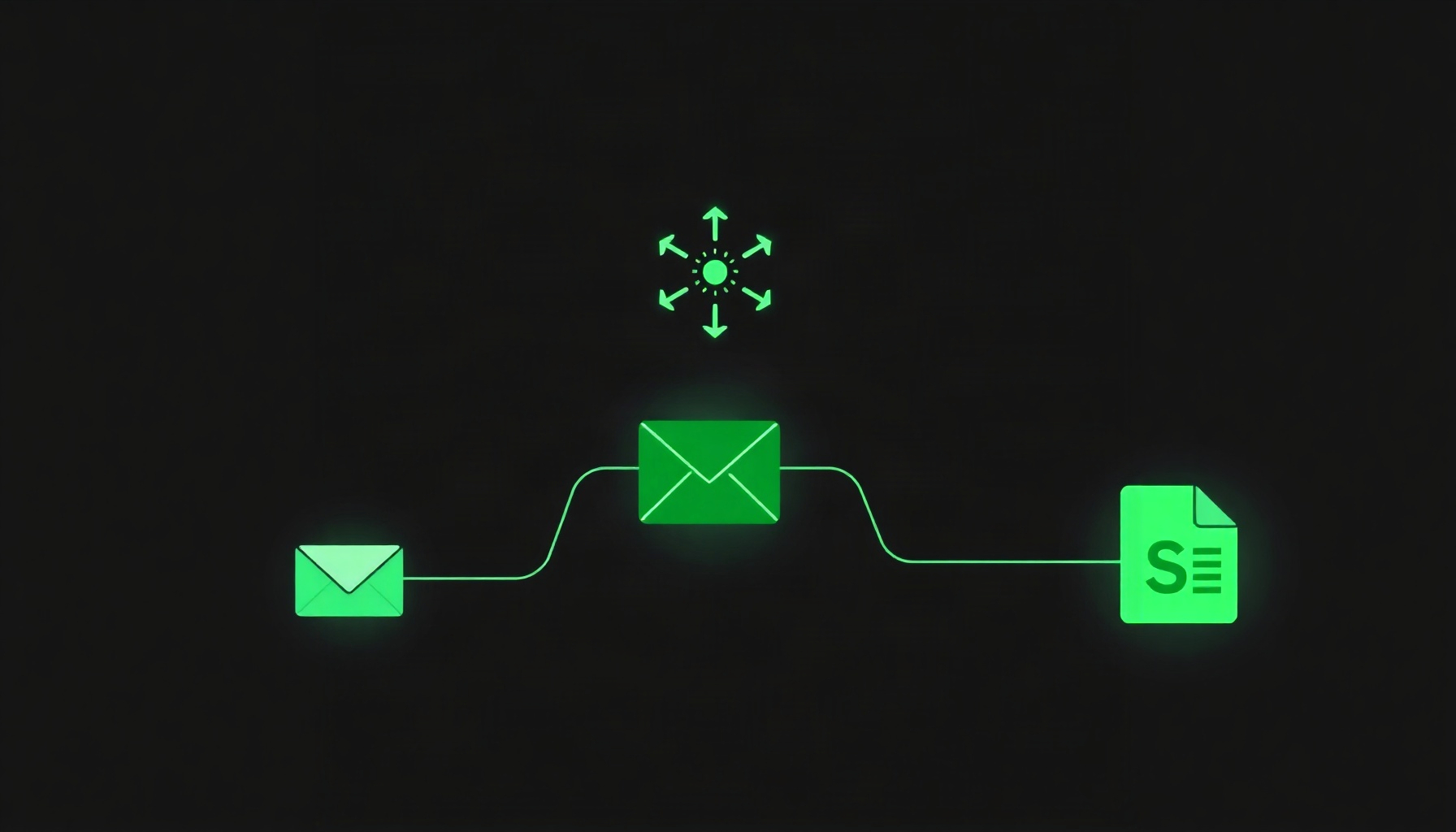
Expected output: your canvas shows two connected modules — Gmail on the left, Google Sheets on the right — with a line between them. This is the classic “email to spreadsheet” automation that most beginners build first, and it is exactly the pattern described in Make’s first-scenario guide. Save the scenario and give it a name like “New email to Sheet.”
Why this pattern? It is simple enough to complete in minutes, uses only free apps, and produces a visible result you can verify — open your spreadsheet and watch the row appear.
Step 4: Run your scenario and watch the credits
Once your scenario is built, click the “Run once” button at the bottom of the screen. Make will execute the workflow one time for testing, processing any emails that match your trigger. You will see each module run with a green checkmark, which tells you the step succeeded. To monitor your usage, check the credit counter in the top-right corner of the interface.
Expected output: after clicking “Run once,” the Gmail module fetches matching emails, the Google Sheets module adds the row, and the credit counter decreases. Each module action in a scenario (for example, adding a Google Sheets row or fetching Gmail data) counts as one credit, per Make’s pricing page. A two-module scenario costs two credits per run, so testing your first automation will cost you a handful of credits out of your monthly 1,000.
What about scheduling? On the Free plan, scenarios can run automatically at minimum 15-minute intervals, per Make’s pricing page. That interval only matters when you turn on the schedule — for now, “Run once” is all you need.
How much does Make cost in 2026?
Make’s Free plan costs $0 per month and includes up to 1,000 credits per month, the no-code visual workflow builder, 3,000+ apps, routers and filters, and a 15-minute minimum interval between runs. The paid plans are each priced for 10,000 credits per month: Core at $12 per month, Pro at $21 per month, and Teams at $38 per month, with annual billing saving 15% or more, per Make’s pricing page. For a side-by-side look at how Make’s pricing and flexibility compare with the other big automation platform, see our Make vs Zapier comparison.
Do you need a paid plan on day one? No. The free tier is genuinely usable for personal automations: 1,000 credits a month covers a two-module scenario running roughly 16 times a day, which is far more than most beginners need while learning.
What about Make’s AI features?
Make’s AI lineup includes 350+ AI apps, Make AI Agents (beta), the AI Toolkit, an MCP server, AI Web Search (beta), and AI Content Extractor, per Make’s pricing page. In practical terms, that means you can drop a ChatGPT or Claude step into the same visual canvas: for example, after your Gmail trigger, add an OpenAI module that summarizes the email, then write the summary into Google Sheets. You connect to services like OpenAI and Anthropic Claude to add language processing, data extraction, or content generation steps into your scenarios without coding, and all of it stays inside the same credit system.
Do AI steps cost extra credits? They run inside the same scenario credit system, so budget them like any other module. Start with one AI step per scenario and watch the counter after each test run. For more on how Make’s automation fits an AI-first workflow, see our full Make.com review.
Common mistakes beginners make
Beginners often try to build overly complex scenarios on their first day, which can be overwhelming and use up credits quickly. Start with one trigger and one action — the email-to-Sheet example above is the right size. Another common mistake is forgetting the 15-minute minimum interval between runs on the Free plan, which can cause confusion when testing time-sensitive triggers, per Make’s pricing page. Finally, not mapping data fields correctly between modules (like ensuring the right email field populates the correct spreadsheet column) is a frequent hurdle — check that each field in the Google Sheets module points at the data you actually want to save. Start simple, test with “Run once,” and scale up gradually.
Troubleshooting
If your scenario fails on the first run, the fix is usually small. If a module shows a red error, click the module to see the message — most errors are connection problems, and re-saving the connection in the Connections section resolves them. If your Gmail trigger does not fire, remember the Free plan’s 15-minute minimum interval between runs and use “Run once” instead of waiting for the schedule, per Make’s pricing page. If you run out of credits mid-month, the scenario simply stops executing until the next monthly reset — no surprise charges — and you can upgrade anytime from the billing page.
FAQ
Is Make free to use?
Yes, Make offers a Free plan that costs $0 per month. This plan includes up to 1,000 credits per month, access to the visual workflow builder, and over 3,000 app integrations, per Make’s pricing page. It is an excellent starting point for beginners to learn the platform and run simple automations without financial commitment, and there is no time limit on the free tier.
What counts as one credit in Make?
In Make, a credit is consumed each time a module successfully performs an action within a running scenario. For example, if your scenario has a Gmail module that fetches an email and a Google Sheets module that adds a row, that run would use two credits — one for each module action, per Make’s pricing page. Planning efficient workflows helps you manage your credit usage effectively.
Does Make work with ChatGPT and Claude?
Yes, Make has official app integrations for both OpenAI (which powers ChatGPT) and Anthropic Claude. You can add these as action modules in your scenarios to send prompts, analyze text, or generate content based on triggers from other apps, per Make’s getting-started documentation. This lets you incorporate advanced AI language models into your no-code automations directly, all inside the visual builder.
Where to go next
Now that you have built your first scenario, explore more advanced concepts like routers for conditional logic or iterators for processing multiple items — both are covered in Make’s official getting-started guide. Check our tools hub for other automation platforms, and the comparison hub for head-to-head breakdowns. For a deeper dive into features and pricing tiers, see our full Make.com review, and if you are deciding between platforms, read our Make vs Zapier comparison. You can also take free official courses at the Make Academy to level up from your first scenario to production automations.
📖 Related Reads
- ToolBrain — tool reviews, LLM comparisons, and AI workflow guides
- NiteAgent — AI agent development, frameworks, and production patterns
- Hermes Tutorials — Hermes Agent setup, configuration, and advanced workflows
Cross-links automatically generated from NoCode Insider.