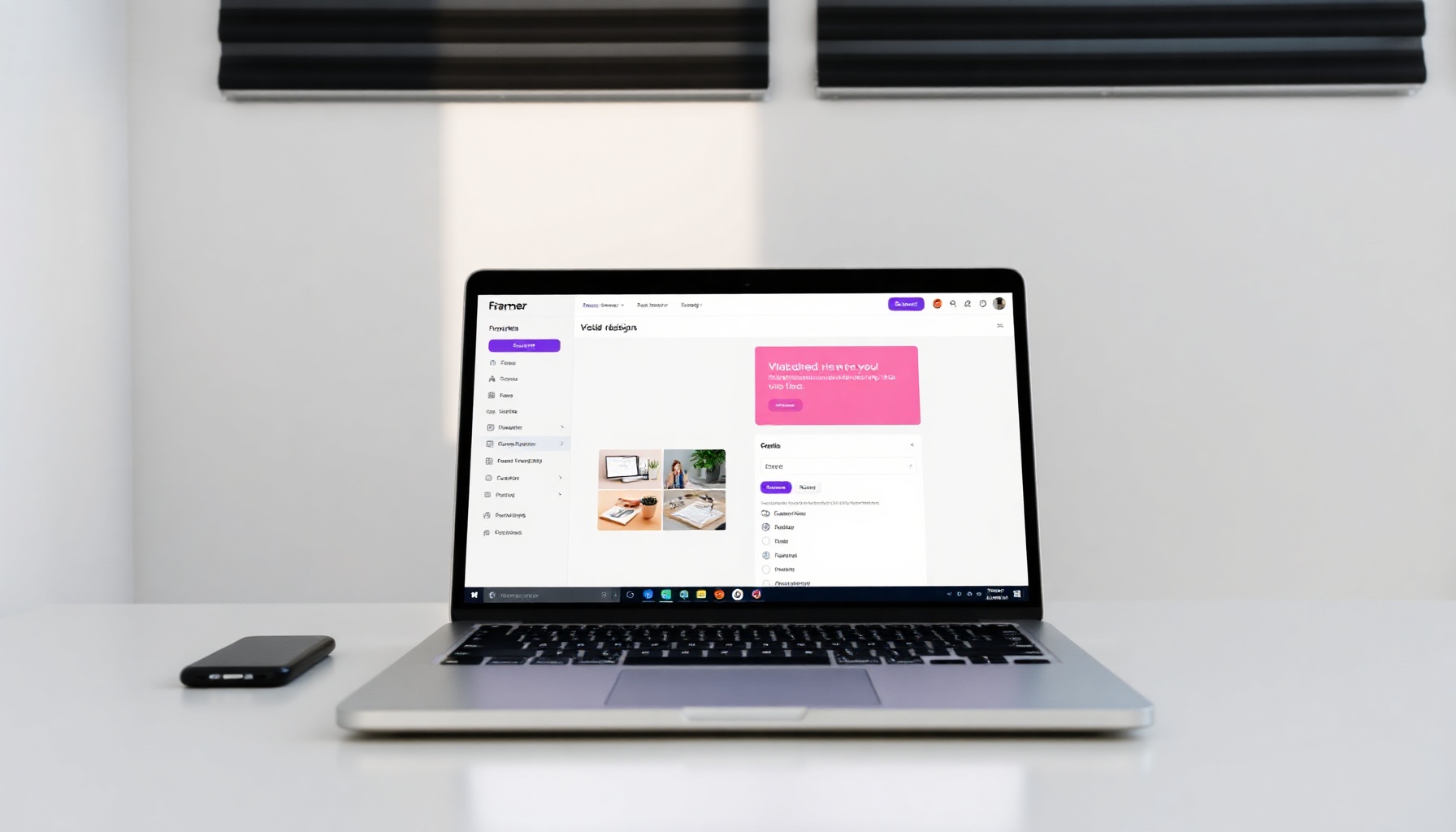
Beginner's Guide to Framer: Getting Started in 2026
Beginner’s Guide to Framer: Getting Started in 2026
If you want to learn how to use Framer for beginners, this guide walks the complete journey from signup to a published site. Framer is a visual no-code website builder that combines a Figma-like design canvas with a built-in CMS, AI agents, and managed hosting on a global CDN. You can start on the free plan with no credit card, design responsive pages visually, and publish to a live URL in minutes — no code required. By the end, you’ll understand the pricing tiers, the core workflow, and the mistakes to avoid on your first project.
How This Guide Was Built
This guide is based on the official Framer documentation, the Framer pricing page, the Framer Academy curriculum, and public community reports. We verified the free tier allowances, the four pricing plans with their limits, the signup flow, the CMS feature set, and the template marketplace directly against Framer’s own pages in August 2026. We did not test enterprise features, paid-tier workflows, or the AI agents hands-on — those steps are based on official documentation and product pages. Last verified: August 2026.
What is Framer?
Framer is a no-code website builder that lets you design and publish responsive websites on a visual canvas without writing code. You drag and drop components, style them with a properties panel, and publish to Framer’s managed global CDN with one click. It feels similar to Figma, but Framer generates production-ready HTML and CSS behind the scenes, so your design becomes a live website instantly. The platform also includes a built-in CMS for dynamic content like blog posts or team directories, and AI agents that generate layouts and write content for you.
How do I get started with Framer for beginners?
Getting started with Framer takes six steps: sign up for a free account, choose a starting point (template, blank canvas, AI prompt, or Figma paste), design your pages on the visual canvas, optionally set up CMS collections, configure SEO metadata, then click Publish. The free plan requires no credit card and lets you publish on a Framer subdomain, so you can have a live site in under an hour. Here is the complete walkthrough based on the Framer Academy lessons.
Step 1: Sign up (free, no card)
Go to Framer’s signup page and create an account with your email or Google login. The free plan is $0 forever — no credit card required. You get 500 credits to try AI features, 10 CMS collections, 1,000 pages, 5 MB file uploads, and one locale, according to the official pricing page. You also get up to three editors for collaboration on the free plan.
Step 2: Choose your starting point
You have four options: a blank canvas, a template from the Framer Marketplace (over 8,800 templates, many free), an AI prompt via “Start with AI,” or a design pasted from Figma using the Figma copy-paste plugin. For your first site, a template is the fastest path — browse the marketplace, preview a few, and click to duplicate one into your workspace.
Step 3: Design on the canvas
Once you have a starting point, click any element to edit text, images, and styling. Drag new components from the left panel. Use the breakpoint controls at the top to switch between Desktop, Tablet (1199–810px), and Phone (809–0px) views. Framer auto-generates responsive behavior, but you should manually check each breakpoint — text that looks great on desktop can overflow on phone screens. The Framer Fundamentals course covers the canvas in depth across four hours of video lessons.
Step 4: Set up CMS collections (optional)
If your site needs dynamic content — blog posts, team profiles, product listings — create a CMS collection in the CMS panel. Define fields like “Title,” “Date,” and “Body.” Framer’s CMS documentation explains collections, items, and fields in detail. The free plan includes 10 CMS collections and 1,000 items, which is generous for learning. On the Basic plan, you get 2 collections; Pro gives you 10 with relational linking between collections.
Step 5: Configure SEO and domain
Click the SEO tab to set your page title, meta description, Open Graph image, and social sharing settings. Framer’s built-in SEO tools handle metadata, sitemaps, and performance optimization automatically. If you’re on a paid plan, connect a custom domain under Site Settings — a free .com domain is included on annual billing for Basic and Pro plans. The free plan gives you a Framer subdomain to start.
Step 6: Publish your site
Click the “Publish” button in the top-right corner. Framer builds your site and deploys it to their global CDN — 20 locations on Basic, 300+ on Pro. Your site goes live instantly at your Framer URL. You can update the published version anytime by clicking “Publish” again. For a detailed walkthrough, see the publishing help article.
What does Framer cost?
Framer has four pricing tiers verified against the official pricing page in August 2026. The free plan covers learning and small projects. Paid plans add custom domains, higher CMS limits, and advanced workflow features like staging and branching. All prices below reflect annual billing — monthly billing costs 30–40% more.
| Plan | Price (annual) | Key limits | Best for |
|---|---|---|---|
| Free | $0 | 500 credits, 1 GB bandwidth, 10 CMS collections, 1,000 pages, Framer subdomain | Learning, experimentation |
| Basic | $10/month | 1,000 credits/month, 2 CMS collections, 50 GB bandwidth, 30 pages, 1,000 CMS items, free custom domain (yearly) | Personal sites, portfolios |
| Pro | $30/month | 3,000 credits/month, 10 CMS collections, 100 GB bandwidth, 150 pages, 2,500 CMS items, staging, branching, redirects | Business sites, client work |
| Enterprise | Custom | Unlimited editors, SSO, SCIM, custom limits, enterprise security | Large organizations |
Additional editors cost $20/month, content editors are $10/month, and viewers are free. The Pro plan can scale via add-ons to 40 CMS collections, 40,000 items, 2 TB bandwidth, and 700 pages. Add-ons include localization ($20/locale), A/B testing via Convert ($50 per 500K events), and advanced hosting ($200).
Using Framer AI agents
Framer’s AI agents accelerate design and content work directly inside the editor. Powered by models like GPT 5.6 Terra, Sonnet 4.6, and Opus, the agents respond to natural-language instructions through a side panel. Type / to run AI actions (skills include /cms for content, /component for reusable UI elements, and /code for custom code) or type @ to reference specific pages, CMS collections, styles, or assets as context. For example, you could type /cms and ask the agent to create a blog collection with sample posts — it generates the structure and content for you to refine. For a full overview, see the Framer Agents page.
How does Framer hosting work?
Framer includes fully managed hosting on a global CDN with every plan — you never configure servers or deployments yourself. The Basic plan uses 20 CDN locations, while the Pro plan expands to over 300 points of presence for faster global delivery. All sites get automatic performance optimization, SSL, and built-in SEO controls. When you click Publish, Framer handles the build, deployment, and caching automatically.
Framer vs other no-code builders
Framer occupies a specific niche among no-code website builders. Compared to Bubble, Framer is design-first and faster for marketing sites and portfolios — Bubble is better for complex web apps with custom logic and database workflows. Compared to Webflow, Framer has a more intuitive canvas editor and AI agents built in, while Webflow offers deeper CSS-level control. If you need a data-driven app (client portals, CRMs), our Softr getting started guide covers a different category of tool. For AI-assisted app building, see our vibe coding tools comparison.
Common mistakes to avoid
- Ignoring mobile breakpoints. Framer generates responsive behavior automatically, but you must check each breakpoint manually. Text that looks right on desktop can overflow or overlap on phone screens. Always preview all three breakpoints before publishing.
- Skipping SEO setup. The built-in SEO tools only work if you fill them out. Set a unique title and meta description for every page. The description should be 150–160 characters for best results in search.
- Not using CMS from the start. If your site will grow — a blog, portfolio, product catalog — set up the CMS on day one. Converting static pages to dynamic collections later is tedious. The Framer CMS lesson covers the process in 26 minutes.
- Overusing AI without review. AI agents generate impressive output quickly, but they can produce inaccurate or off-brand copy. Always review AI-generated text before publishing — the agents accelerate your work, they don’t replace your judgment.
FAQ
Is Framer free for beginners?
Yes. The free plan costs $0 forever with no credit card required, per the official pricing page. You get 500 credits to try AI features, 10 CMS collections, 1,000 pages, and 1 GB of bandwidth. You can design, build, and publish to a free Framer subdomain at no cost. Custom domains require a paid plan starting at $10/month.
Can I connect my own domain to a Framer site?
Yes, but you need at least the Basic plan ($10/month with annual billing). A free .com domain is included when you choose annual billing on Basic or Pro. The free plan only provides a Framer-branded subdomain (e.g., yoursite.framer.website).
Do I need to know how to code to use Framer?
No. Framer is designed as a no-code website builder — you build visually by dragging components, editing text inline, and styling with the properties panel. Advanced users can add custom code via the /code AI skill or code overrides, but it is never required for a standard website.
How long does it take to launch a Framer site?
Most beginners publish their first site within a day. A template-based site takes roughly 1–2 hours to customize: duplicate a template, swap in your text and images, check the three responsive breakpoints, set SEO fields, and click Publish. A fully custom design built from a blank canvas takes longer — plan on a few days to a week if you are learning the canvas, breakpoints, and CMS at the same time. The Framer Academy fundamentals course is designed to get you productive in that first session.
Where to go next
You’ve built your first Framer site — now go deeper:
- Take the Framer Academy courses. The Fundamentals course (4 hours) covers the core workflow; CMS Basics (26 minutes) is essential for content-driven sites; Animations and Interactions (2.5 hours) adds polish.
- Browse the template marketplace. Over 8,800 templates across business, creative, and portfolio categories — many free.
- Read the official Framer docs. Searchable help articles covering publishing, domains, SEO, and advanced features.
- Compare Framer with alternatives. See our Bubble review, Webflow guide, or Softr getting started guide for different approaches to no-code building.
Start with a template on the free plan, and you’ll have a published site by the end of the day.
📖 Related Reads
- NiteAgent — AI agent development, frameworks, and production patterns
- ToolBrain — tool reviews, LLM comparisons, and AI workflow guides
- CodeIntel Log — code quality, debugging, and software engineering benchmarks
Cross-links automatically generated from NoCode Insider.